If you’ve been scrolling through social media lately, you’ve probably seen those incredibly realistic AI-generated videos, the ones that make you do a double-take.
Chances are, many of them were created with Kling AI In 2026, this Chinese-developed platform has become one of the most powerful tools for video generation, and the best part? You don’t need a film degree or expensive equipment to use it.
Whether you’re a marketer looking to create engaging ad content, a content creator building your brand, or someone just curious about AI video tools, this guide will walk you through everything you need to know about using Kling AI video generation in 2026.
What Makes Kling AI Different?
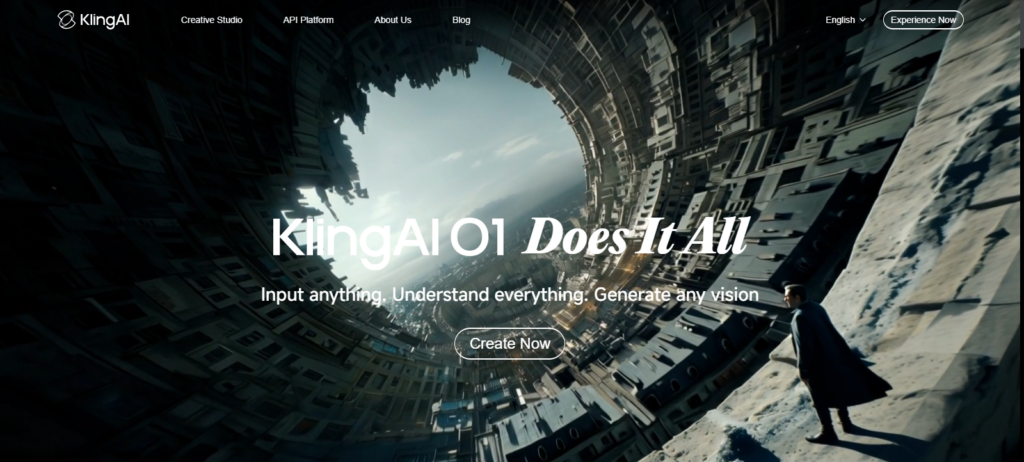
Before we dive into the how-to, let’s quickly understand what sets Kling AI apart. Developed by Kuaishou, Kling AI uses advanced 3D spatiotemporal modeling that creates videos with realistic physics and motion. Unlike tools that simply stitch images together, Kling actually understands how objects move in space and time.
Think of it this way: if you ask it to create a video of leaves falling, it doesn’t just animate pictures of leaves. It understands wind patterns, gravity, and how leaves actually tumble through the air. That’s what makes the output look so convincing.
Getting Started: Your First Kling AI Project
Step 1: Setting Up Your Account
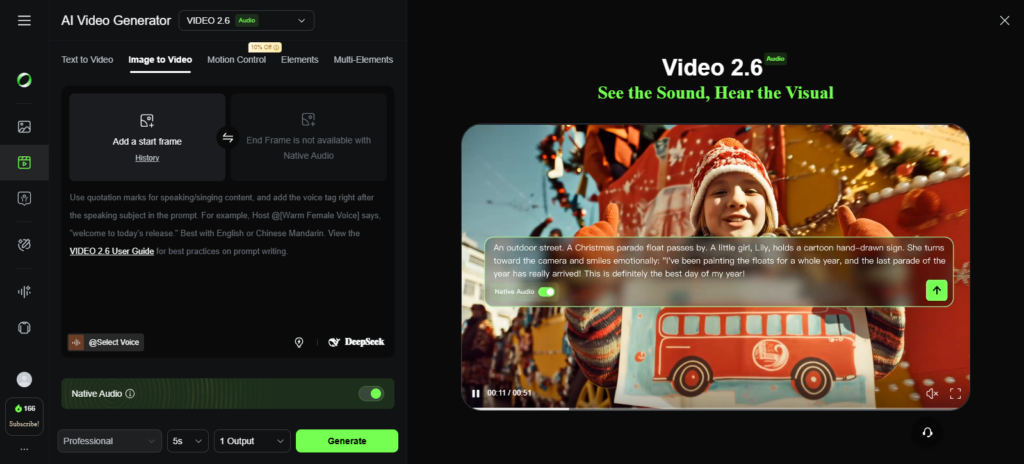
Head to the Kling AI platform and create an account. The good news is that you can start with their free tier to test the waters. However, be prepared for longer queue times—during my testing, free users sometimes wait up to an hour for generation to start.
If you’re serious about using Kling AI for business or regular content creation, the paid plans ($6.99/month for Standard upward) offer Fast Track generation, which reduces wait times to just a few minutes.
Step 2: Understanding the Credit System
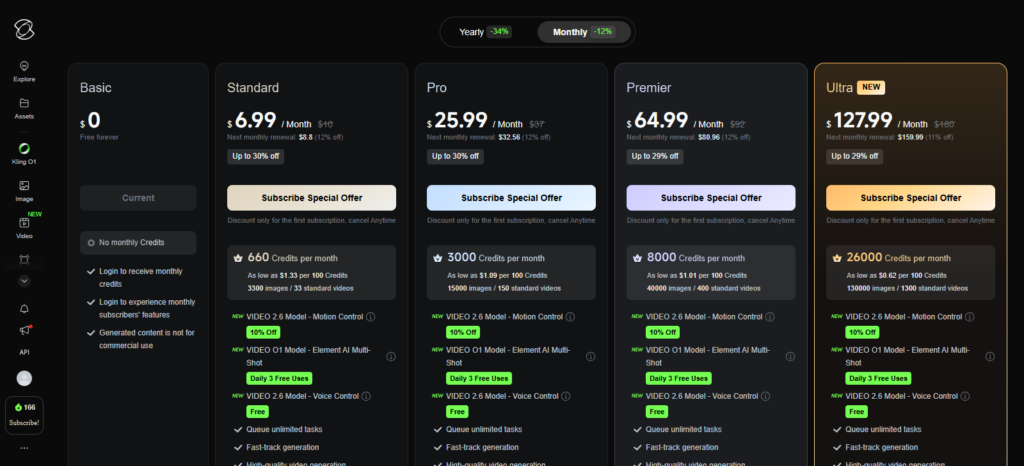
Kling AI operates on a credit-based system. Here’s what you need to know:
- Video length affects cost: A 5-second clip costs fewer credits than a 10-second one
- Resolution matters: 1080p videos consume more credits than lower resolutions
- Advanced features add up: Using multi-element editing, lip sync, or video extension will increase your credit spend
For beginners, start with shorter videos (5 seconds) at standard resolution to stretch your credits while you learn.
Practical Workflow Tutorial: Creating Your First Video
Workflow 1: Text-to-Video Generation (Perfect for Quick Content)
This is where most beginners should start. Here’s the exact process:
Step 1: Choose Your Settings
- Select your model (Video 1.6 or 2.5 Turbo for best results)
- Pick aspect ratio (16:9 for YouTube, 9:16 for TikTok/Instagram Reels, 1:1 for Instagram feed)
- Set duration (start with 5 seconds)
- Choose a style if desired (cinematic, anime, realistic, etc.)
Step 2: Write an Effective Prompt
This is crucial. Kling AI responds best to structured prompts. Here’s the formula that works:
[Subject] + [Action] + [Setting] + [Camera Movement] + [Lighting]
Poor prompt: “A woman walking”
Effective prompt: “A young woman in a red coat walking slowly down a snowy Tokyo street at dusk, camera following from behind, warm street lights creating soft glow”
Pro tip: Keep it to ONE subject doing ONE clear action. The more you ask Kling to juggle, the more likely you’ll get weird artifacts.
Step 3: Generate and Refine
Click generate and wait. Once your video is ready, review it carefully. If it’s not quite right, adjust your prompt and try again. Small changes make big differences—adding “slow motion” or “cinematic lighting” can completely transform the output.
Workflow 2: Image-to-Video Animation (For Brand Consistency)
This workflow is incredibly powerful for marketers who need consistent branding.
Step 1: Prepare Your Base Image
Upload a high-quality image (product photo, portrait, logo, etc.). The clearer your source image, the better your results.
Step 2: Describe the Motion
Instead of describing what’s in the image (Kling can see it), describe what you want to HAPPEN:
- “Camera slowly zooms in on the product”
- “Wind gently blowing through the model’s hair”
- “Smooth 360-degree rotation around the object”
Step 3: Enable Audio (Optional)
Kling AI can generate sound effects to match your video. This works reasonably well for ambient sounds (wind, rain, city noise) but may need editing for professional projects.
Workflow 3: Multi-Element Editing (Advanced)
Once you’re comfortable with basics, multi-element editing lets you combine multiple reference images into one scene. This is available with the Video 1.6 model.
Use Case Example: Creating a video with your brand mascot appearing in different scenarios.
- Upload your character references (up to 4 images)
- Describe the scene you want
- Kling will generate the video incorporating your characters
Important note: Based on testing, this feature works best with 1-2 characters. Three or more can lead to confusion, with Kling sometimes mixing up who’s who.
Industry-Specific Applications: How Different Professionals Use Kling AI
For Digital Marketers
Product Launch Videos Create teaser content without expensive video shoots. Upload your product image, add dramatic camera movements, and generate 5-10 second clips perfect for social media ads.
Example workflow: Product image → “Camera circles around the product with dramatic lighting and sparkle effects” → Export for Instagram Reels ads
A/B Testing Creative Generate multiple video variations quickly to test what resonates with your audience. Change backgrounds, lighting, or camera angles without reshooting.
Social Proof Content Use image-to-video to animate customer testimonials or before/after photos, making static content more engaging.
For Content Creators
YouTube Intro Sequences Create unique, eye-catching intros that match your brand. The text-to-video function can generate anything from futuristic tech backgrounds to cozy animated scenes.
B-Roll for Vlogs Need establishing shots of cities you haven’t visited? Generate them. Want cinematic transitions? Kling can help. This fills gaps in your content without stock footage costs.
Thumbnail Animation Create animated thumbnails that catch scrollers’ attention. Upload your thumbnail design and add subtle motion—it works especially well for preview content.
For Small Business Owners
Real Estate Walkthroughs Upload property photos and create smooth panning videos that give potential buyers a better sense of space. Add descriptions like “slow pan across modern kitchen with natural lighting.”
Restaurant and Cafe Promotion Animate food photography with steam rising from hot dishes, or create ambiance videos of your space. These work wonderfully for Instagram and Facebook.
Service Demonstrations For service-based businesses, create explainer-style videos showing your process. While Kling isn’t perfect for complex multi-step processes, it excels at focused, single-action demonstrations.
For Educators and Course Creators
Concept Visualization Explaining abstract concepts? Generate visual metaphors. Teaching about ocean currents? Create a video showing water flow patterns. Discussing historical events? Generate period-accurate scene recreation.
Attention-Grabbing Intros Start lessons with dynamic visuals that hook students immediately. A 5-second Kling-generated intro can set the tone for your entire lesson.
Student Projects If you teach digital media or marketing, Kling AI makes an excellent tool for student assignments, teaching them about AI capabilities and limitations.
Tips for Getting Better Results from Kling AI
1. Master the Art of Prompting
- Be specific about camera angles: “close-up shot,” “wide angle,” “bird’s eye view”
- Describe motion speed: “slowly,” “rapid,” “smooth”
- Specify lighting: “golden hour,” “dramatic shadows,” “soft diffused light”
2. Start Simple, Then Layer Complexity
Don’t try to create a Hollywood blockbuster on your first try. Start with a simple scene: one subject, one action, clear lighting. Once that works, gradually add complexity.
3. Use the Right Model for Your Needs
- Video 2.5 Turbo: Faster generation, good for social content
- Video 1.6: More detailed, better for professional work
- Image 01: Specifically for image generation
4. Plan Your Credit Usage
If you’re on a budget, plan your monthly content calendar and calculate credit needs. Creating five 5-second videos costs less than one 25-second video, but gives you more pieces of content to work with.
5. Combine with Traditional Editing
Kling AI is powerful, but it’s not a complete replacement for video editing software. Generate your clips in Kling, then polish them in Adobe Premiere, DaVinci Resolve, or even free tools like CapCut for:
- Color grading
- Audio mixing
- Text overlays
- Transitions between clips
Common Mistakes to Avoid
Mistake 1: Overly Complex Prompts
“A cyberpunk marketplace with hundreds of people shopping while flying cars zoom overhead and neon signs flicker as rain falls and a dog chases a cat…”
This will likely produce messy results. Kling handles complexity, but it has limits. Keep scenes focused.
Mistake 2: Ignoring Aspect Ratio
Creating vertical video (9:16) when you need horizontal (16:9) wastes credits. Plan your output format before generating.
Mistake 3: Expecting Perfect Hands and Text
As of 2026, Kling AI (like most AI video tools) still struggles with:
- Detailed hand movements
- On-screen text clarity
- Multiple similar faces in one scene
Work around these limitations rather than fighting them.
Mistake 4: Not Testing the Free Version First
Before committing to a paid plan, experiment with the free tier. Yes, queue times are longer, but you’ll learn whether Kling fits your needs before spending money.
Mistake 5: Forgetting About Licensing
Always check Kling AI’s current terms of service regarding commercial use. Generally, paid accounts allow commercial use, but verify this for your specific application.
Making the Most of Your Subscription
If you decide to subscribe, maximize value by:
Batching Your Work: Generate all your monthly content in focused sessions rather than sporadic single videos. This helps you use credits efficiently and maintain creative flow.
Creating Template Prompts: Save prompts that work well for different video types. Build a library of “go-to” formulas for different needs.
Repurposing Content: Generate one longer video, then cut it into multiple shorter clips for different platforms.
Collaborating: If you’re part of a team, consider the Premier or Ultra plans that offer more credits, which can be shared across projects.
The Future of Kling AI in Your Workflow
As we move through 2026, Kling AI continues to evolve. The platform has already surpassed 45 million users globally, and with each update, generation quality improves while costs decrease. This democratization of video creation means even solopreneurs and small teams can produce content that rivals big-budget productions.
The key is understanding that Kling AI isn’t about replacing human creativity—it’s about amplifying it. You still need good ideas, solid strategy, and creative vision. Kling just removes the technical barriers that once made video production expensive and time-consuming.
Frequently Asked Questions
Q: How long does it take to generate a video with Kling AI in 2026?
A: On paid plans with Fast Track, most standard videos generate in 3-5 minutes. Free tier users may wait 30-60 minutes depending on server load. Longer videos (15+ seconds) or complex multi-element projects can take 10-15 minutes even on premium plans.
Q: Can I use Kling AI videos for commercial purposes?
A: Yes, paid subscription plans generally allow commercial use. However, always review the current terms of service for your specific plan and intended use case. Free trial videos may have restrictions.
Q: What’s the maximum video length Kling AI can generate?
A: As of 2026, Kling AI can generate videos up to 2 minutes long. However, longer videos consume significantly more credits. For most social media applications, 5-15 second clips are optimal both for cost and engagement.
Q: Does Kling AI work well for creating videos with multiple people?
A: Kling AI performs best with 1-2 clearly defined subjects. When you add 3+ people, especially in complex interactions, the quality drops and you may see inconsistencies in faces, proportions, or movements. For crowd scenes, expect limitations.
Q: Can I generate videos in languages other than English?
A: Yes, Kling AI supports multiple languages for text prompts. However, the lip-sync feature works most accurately with English and other major languages. Results may vary for less common languages.
Q: How does Kling AI compare to other AI video generators in 2026?
A: Kling AI excels at realistic motion, consistent characters, and physics simulation. It’s particularly strong for single-subject content and natural camera movements. Tools like Sora may be better for complex storytelling, while Hailuo AI offers faster generation for shorter clips. Your choice depends on your specific needs.
Q: Do I need any special hardware to use Kling AI?
A: No. Kling AI is entirely cloud-based and runs in your web browser. You just need a stable internet connection. The AI processing happens on Kling’s servers, not your computer.
Q: Can Kling AI remove backgrounds from generated videos?
A: Not automatically. You’ll need to use the generated video in a traditional editing program with green screen or masking capabilities if you want to remove or replace backgrounds after generation.
Q: What happens if I run out of credits mid-month?
A: You can purchase additional credit top-ups without upgrading your plan. Alternatively, you can wait until your subscription renews. Some users keep a small credit buffer for urgent projects.
Q: Are there any content restrictions on Kling AI?
A: Yes. Like all AI platforms, Kling AI has content policies prohibiting harmful, explicit, or misleading content. Review their usage policies before creating content, especially for sensitive topics.
Ready to Transform Your Video Content Strategy?
Kling AI video generation in 2026 represents a genuine shift in how content gets created. What once required teams, equipment, and budgets can now be accomplished by individuals with clear vision and solid prompts.
The learning curve is real, but not steep. Start with simple projects, learn from each generation, and gradually expand your capabilities. Before long, you’ll be creating professional-quality video content that engages your audience and elevates your brand.
Want to stay updated on the latest AI video tools, workflow tips, and industry best practices? Subscribe to our newsletter for weekly tutorials, case studies, and insider strategies that will keep you ahead of the curve in the rapidly evolving world of AI-powered content creation.
The future of video creation is here, and it’s more accessible than ever. Time to start creating.