If you’ve been putting off video marketing because filming feels overwhelming, HeyGen might be exactly what you need. This AI-powered platform lets you create professional talking-head videos without cameras, actors, or editing skills. In 2026, HeyGen has become the go-to tool for beginners who want video content fast.
Let me walk you through creating your first Hey Gen video from scratch—no experience required.
What You’ll Create
In this tutorial, you’ll make a 30-second product introduction video featuring an AI avatar. Perfect for social media, email campaigns, or your website’s homepage.
Your First HeyGen Project: Step-by-Step
Step 1: Sign Up and Choose Your Plan
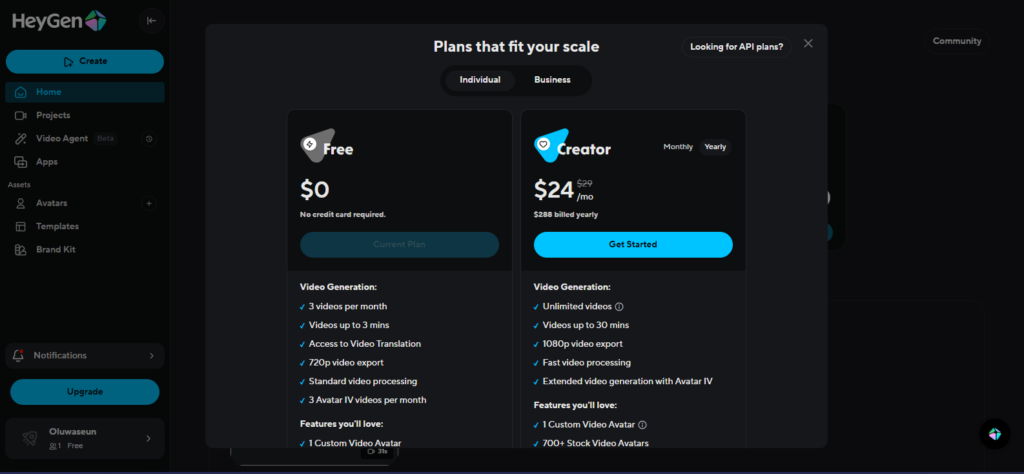
Head to HeyGen’s website and create a free account. You’ll get 3 video credits per month on the free plan—plenty to test the platform. If you need more, the Creator plan starts at $24/month with unlimited videos.
The signup takes about 60 seconds. Just use your email, and you’re in.
Step 2: Start with a Template
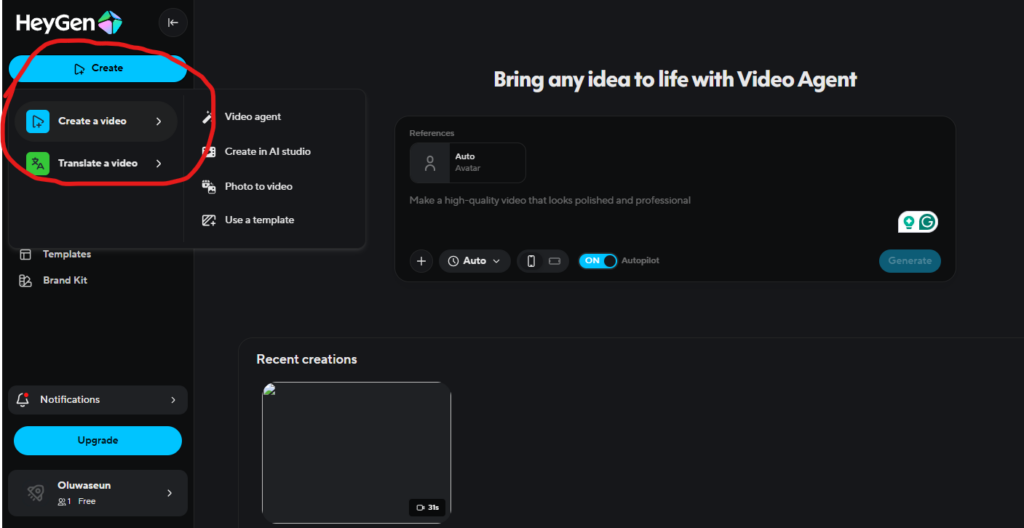
Once inside, click “Create Video” then “Use a Template.” HeyGen offers 400+ templates organized by category.
For your first project, choose a simple template under “Marketing” or “Product Promotion.” Templates labeled “Beginner-Friendly” work best—they have fewer elements to customize.
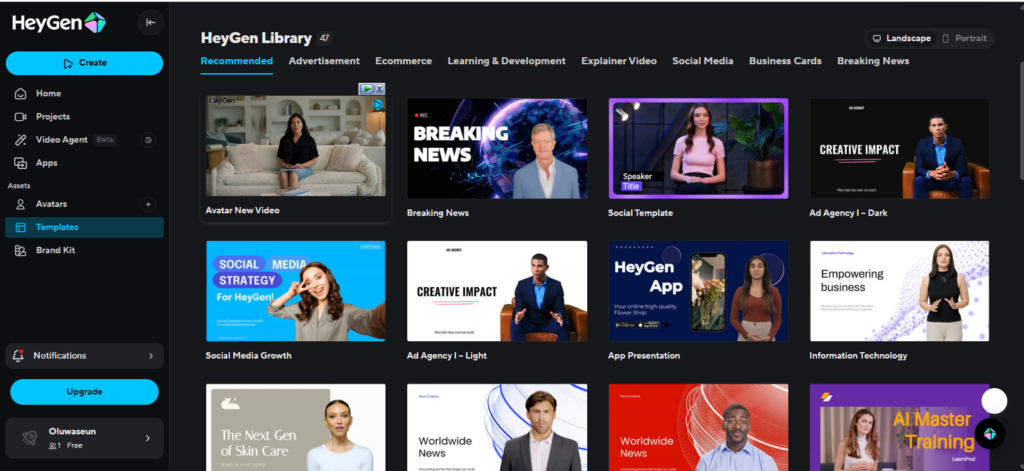
Pro tip: Pick a template with a clean background and single avatar. Complex templates can overwhelm first-timers.
Step 3: Customise Your Avatar
Click on the avatar in your template. You’ll see HeyGen’s library of 500+ realistic avatars representing different ages, ethnicities, and professional styles.
Choose someone who matches your brand vibe. For business content, look for professional attire and neutral expressions. For casual brands, choose avatars with friendly, relaxed appearances.
Can’t find the perfect match? On paid plans, you can create custom avatars from your own photos or videos. But for now, the stock library has you covered.
Step 4: Write Your Script
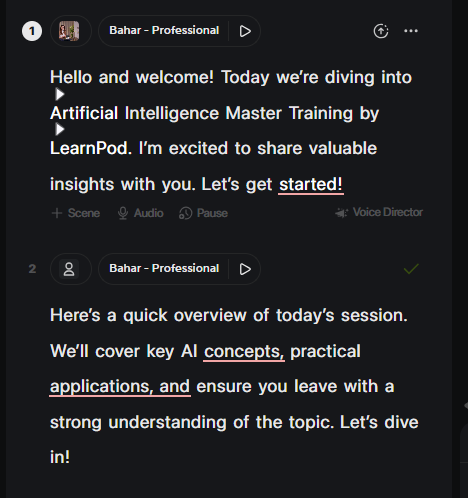
Click the script box and replace the placeholder text with your message. Keep it short—aim for 30-50 words for your first video.
Example script: “Looking for a coffee cup that keeps drinks hot for hours? Our thermal mugs use triple-wall insulation to maintain temperature all day. Available now in five colors. Visit our website to order yours today.”
HeyGen’s text-to-speech works best with:
- Short, clear sentences
- Natural conversational language
- Proper punctuation (it affects pacing)
Step 5: Select Your Voice
Click the voice settings. HeyGen offers 300+ voices across 175+ languages. For English content, popular choices include:
- “Emma – Professional” for corporate videos
- “James – Friendly” for casual content
- “Sarah – Energetic” for promotional material
Test a few voices with the preview button. The right voice transforms your message.
Bonus: Adjust voice speed in settings if it sounds too fast or slow.
Step 6: Add Your Branding (Optional)
Under the “Brand Kit” section, upload your logo and choose brand colors. This is available on Creator plans and above.
For free users, keep it simple—the video content matters most right now.
Step 7: Generate Your Video
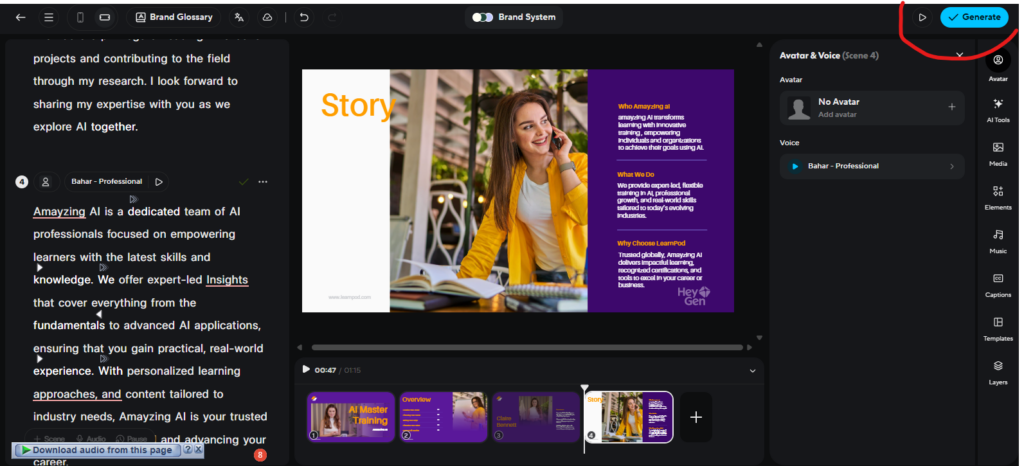
Click “Generate” in the top right. HeyGen will process your video in 3-5 minutes (free plans may take slightly longer during peak times).
Grab a coffee. When you return, your video will be ready.
Step 8: Preview and Download
Once generated, preview your video. Check:
- Does the avatar’s lip-sync look natural?
- Is the pacing comfortable?
- Does the voice match your brand?
If something feels off, click “Edit” to adjust your script or voice, then regenerate. It’s unlimited on paid plans.
Happy with it? Click “Download.” Free plans export at 720p (perfect for social media). Paid plans unlock 1080p and 4K options.
Pros and Cons of HeyGen
Pros
- Beginner-friendly interface – no learning curve
- No filming equipment needed – create videos from anywhere
- Fast turnaround – videos ready in minutes
- Multilingual support – 175+ languages with automatic lip-sync
- Professional results – avatars look surprisingly realistic
- Template variety – 400+ templates for different industries
Cons
- Voice limitations – can sound slightly robotic on free plan
- Processing delays – occasional slowdowns during busy periods
- Creative constraints – less control than traditional video editing
- Free plan limits – only 3 videos per month
- Customization ceiling – advanced users may want more flexibility
- Pricing – costs add up for high-volume creators
What’s Next?
Now that you’ve created your first Hey Gen video, experiment with:
- Different avatar styles for various campaigns
- Video translation to reach global audiences
- Longer scripts as you get comfortable
- Custom branding on paid plans
The key is consistency. Create a few videos per week, and you’ll quickly develop an intuition for what works.
Frequently Asked Questions
Most videos process in 3-5 minutes on paid plans. Free accounts may experience longer wait times (10-15 minutes) during peak usage hours. Complex videos with multiple scenes can take up to 30 minutes.
Yes, paid plans include commercial use rights. Free plan videos may have restrictions, so check HeyGen’s current terms. Always verify licensing before publishing client work or paid advertisements.
Absolutely. HeyGen’s Avatar IV technology produces convincing results suitable for marketing, training, and corporate communications. While close inspection reveals they’re AI-generated, most viewers accept them naturally, especially in short-form content.
What’s the best HeyGen plan for beginners?
Start with the free plan to learn the platform. If you’re creating regular content, upgrade to Creator ($24/month) for unlimited videos, watermark removal, and 1080p exports. The free plan’s 3-video limit helps you test without commitment.
Within HeyGen, you can regenerate videos with script or voice changes. For advanced editing (adding graphics, music, transitions), export your video and use editing software like Adobe Premiere, DaVinci Resolve, or CapCut.
Ready to Scale Your Video Content?
HeyGen removes the biggest barrier to video marketing: the overwhelming logistics of traditional production. You’ve just created your first AI video—now imagine doing this for every product launch, email campaign, and social media post.
The learning curve is gentle, but the results are powerful.
Want more AI video tutorials, platform comparisons, and content strategy tips?
Subscribe to our newsletter and get weekly insights that’ll help you stay ahead in the AI-powered content revolution.
Stop overthinking video. Start creating.